

SignFast – Private PDF Signature Tool

Original price was: $14.99.$9.99Current price is: $9.99.
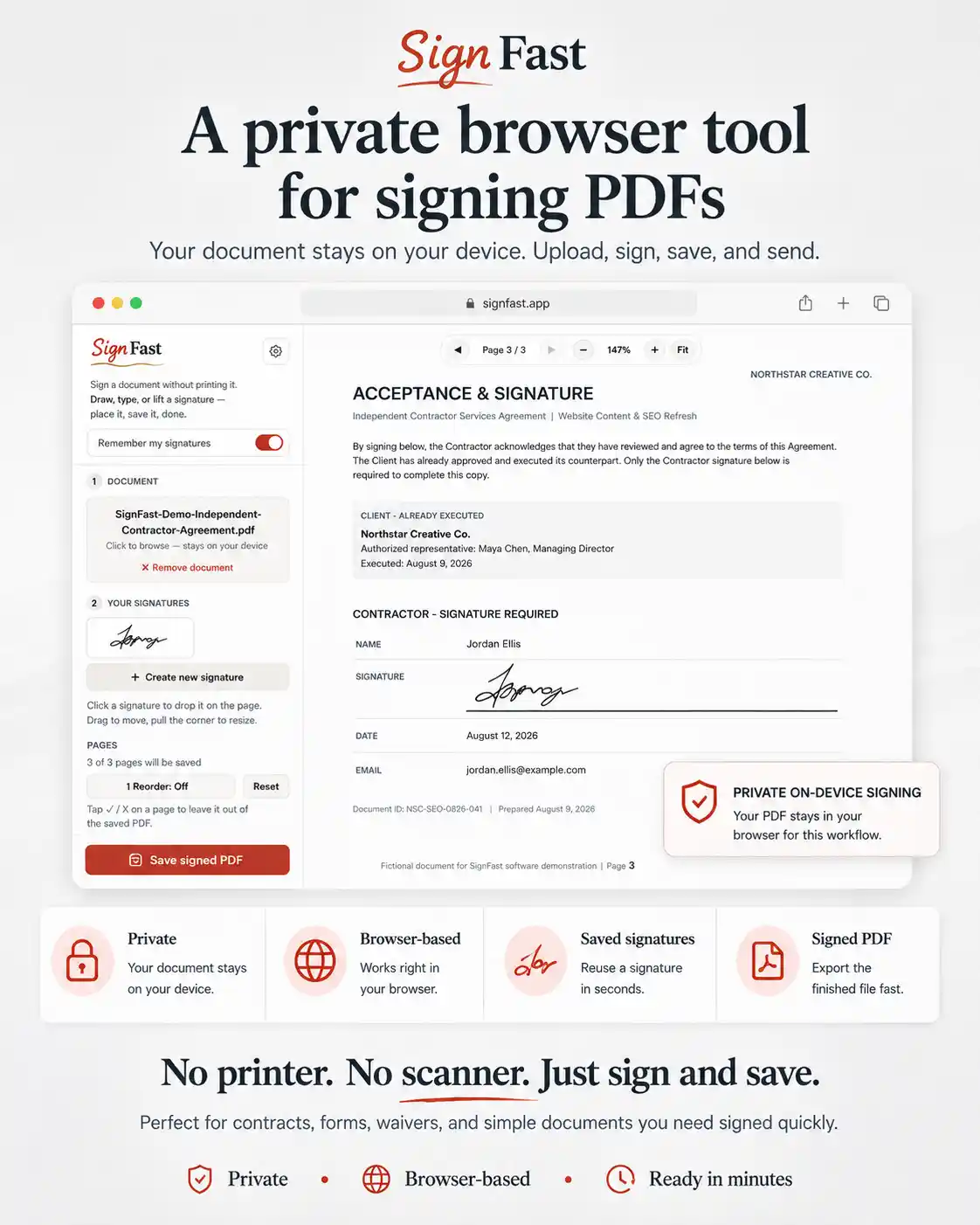
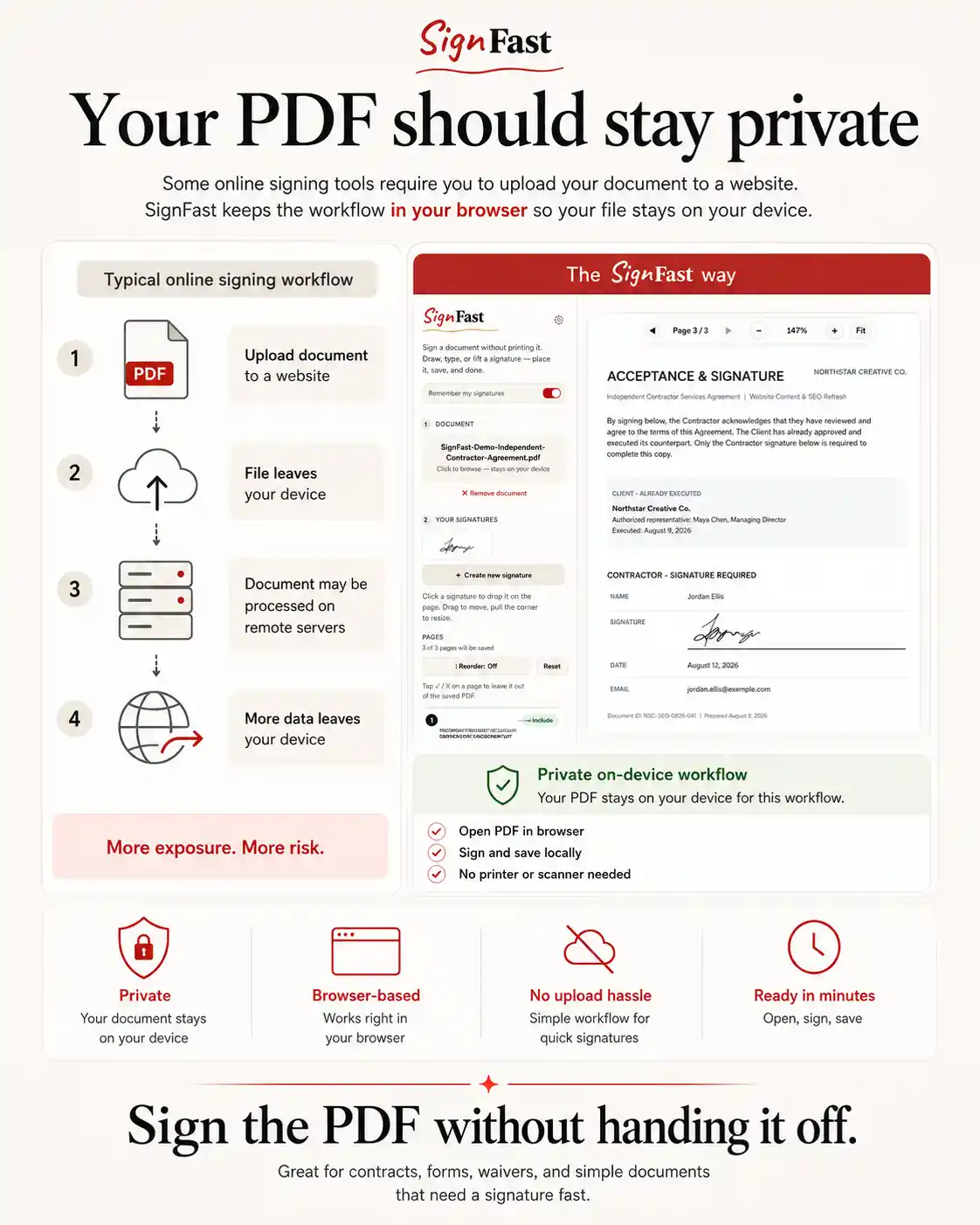
Sign PDFs without printing, scanning, or uploading your document to a signing server.
SignFast is a private browser-based PDF signature tool that lets you draw, type, or lift a handwritten signature from a photo. Place it anywhere on your PDF, protect saved signatures with a password, manage document pages, and download a standard signed PDF.
You can also create an optional verification file to check later whether the signed PDF has been changed.
A private PDF signature tool for everyday documents
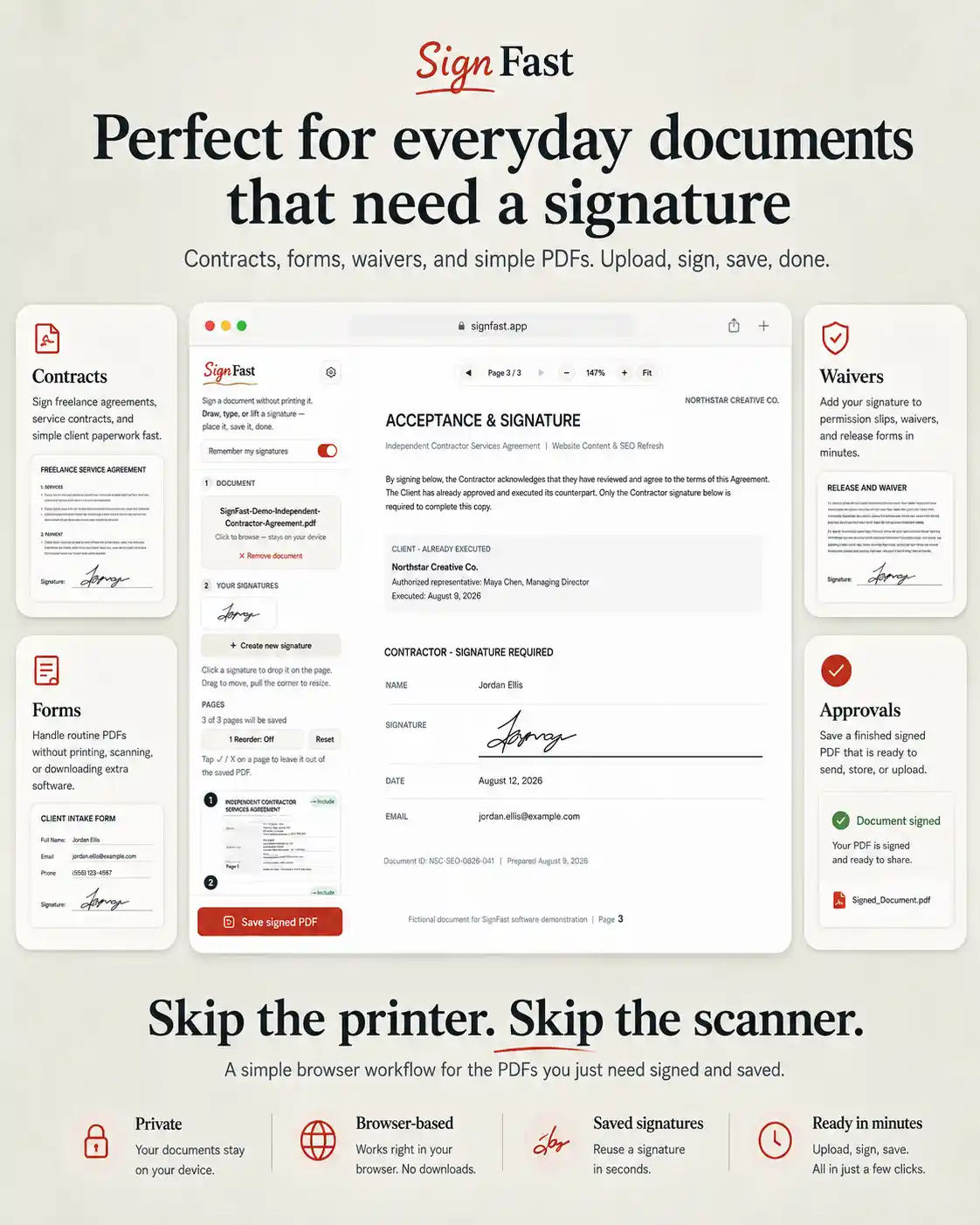
SignFast is a private PDF signature tool for contracts, forms, waivers, approvals, agreements, and other documents that need your signature.
Instead of sending your PDF to another signing server, SignFast handles the signing workflow locally in your browser. Your browser opens the document, places your signature, manages the pages, and creates the finished PDF.
Recipients can then open the signed document with a standard PDF reader. They do not need SignFast or a separate account.
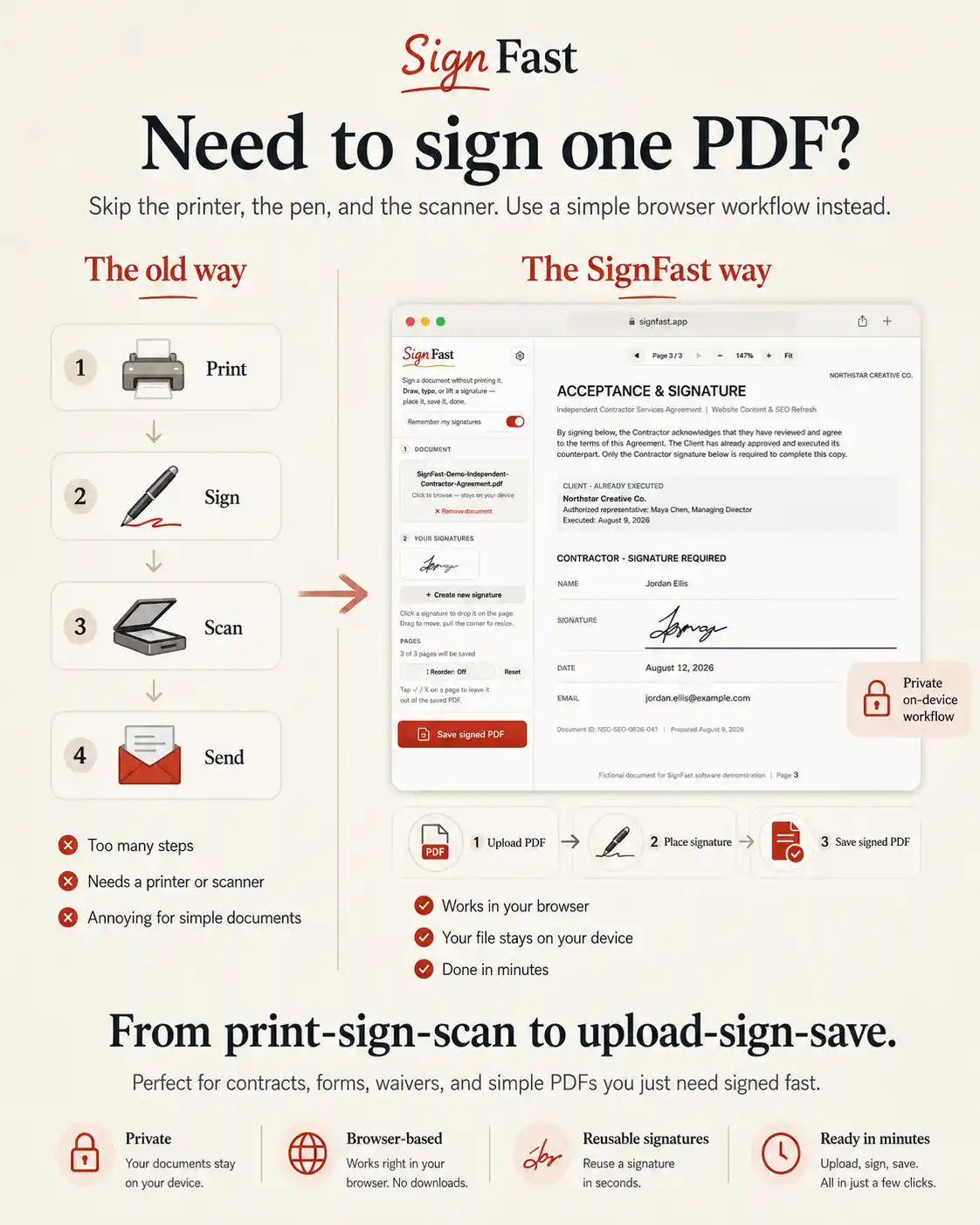
Why choose this PDF signature tool?
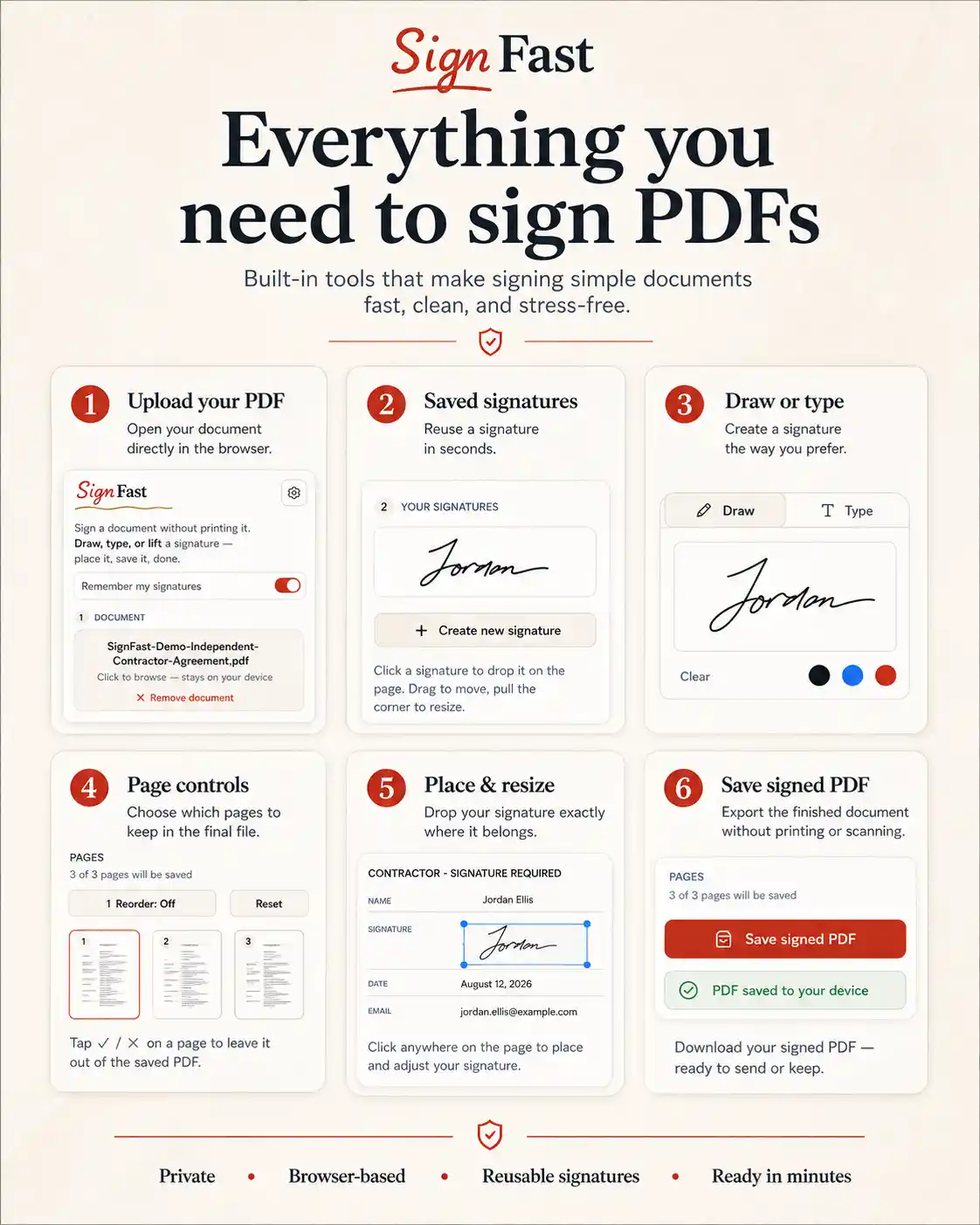
SignFast removes the usual printing and scanning steps. It also gives you several ways to create a signature, precise placement controls, reusable signature storage, page-management tools, and optional PDF verification.
With SignFast, you can:
- Draw a handwritten signature
- Type your name in a script-style signature
- Lift a signature from a photograph
- Save signatures for future documents
- Protect saved signatures with a password
- Move, resize, or remove signatures
- Reorder or exclude PDF pages
- Download a standard signed PDF
- Create an optional PDF verification file
Most importantly, SignFast keeps the signing and verification workflow inside your browser.
Draw, type, or lift your signature
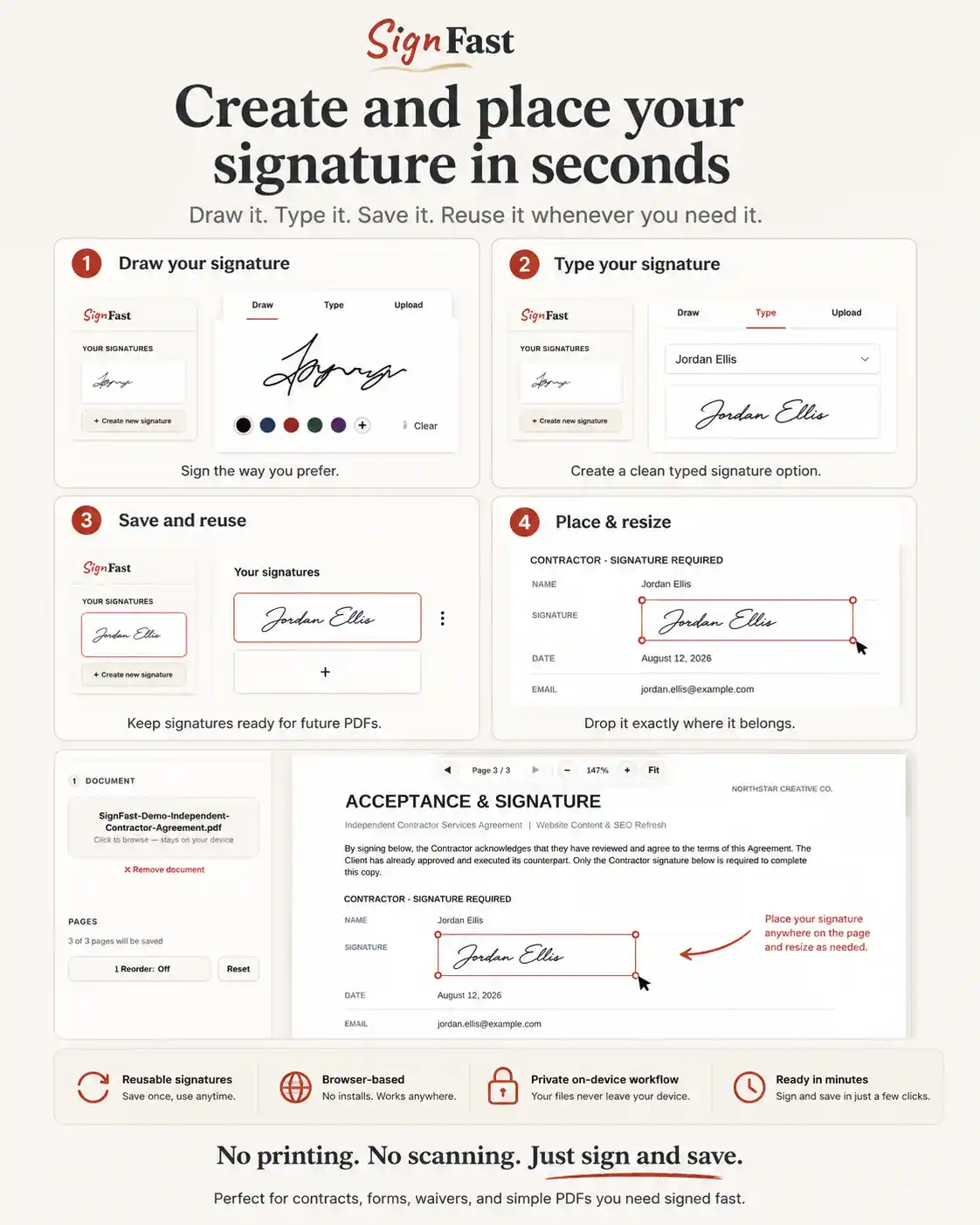
SignFast gives you three ways to create a signature.
Draw your signature
First, write your signature with a mouse, trackpad, touchscreen, or stylus. You can then place it directly on the document.
Type your signature
Alternatively, enter your name and choose from multiple script-style signature options.
Lift a signature from a photo
If you already have a handwritten signature, photograph it and open the image in SignFast. The tool isolates the signature so you can place it cleanly on your PDF.
As a result, you do not need to recreate your signature with a mouse or trackpad.
Add a signature to a PDF precisely
After creating or selecting a signature, place it anywhere on the PDF.
You can:
- Move the signature
- Resize it
- Reposition it
- Remove it
- Add a different signature
- Reuse a saved signature
In addition, SignFast lets you review the document before saving it. Therefore, you can correct the signature’s size or position before creating the final PDF.
The recipient receives a standard PDF and can open it with ordinary PDF-reading software.
Save and protect reusable signatures
You can save signatures for future documents. Consequently, you do not need to draw, type, or photograph the same signature every time.
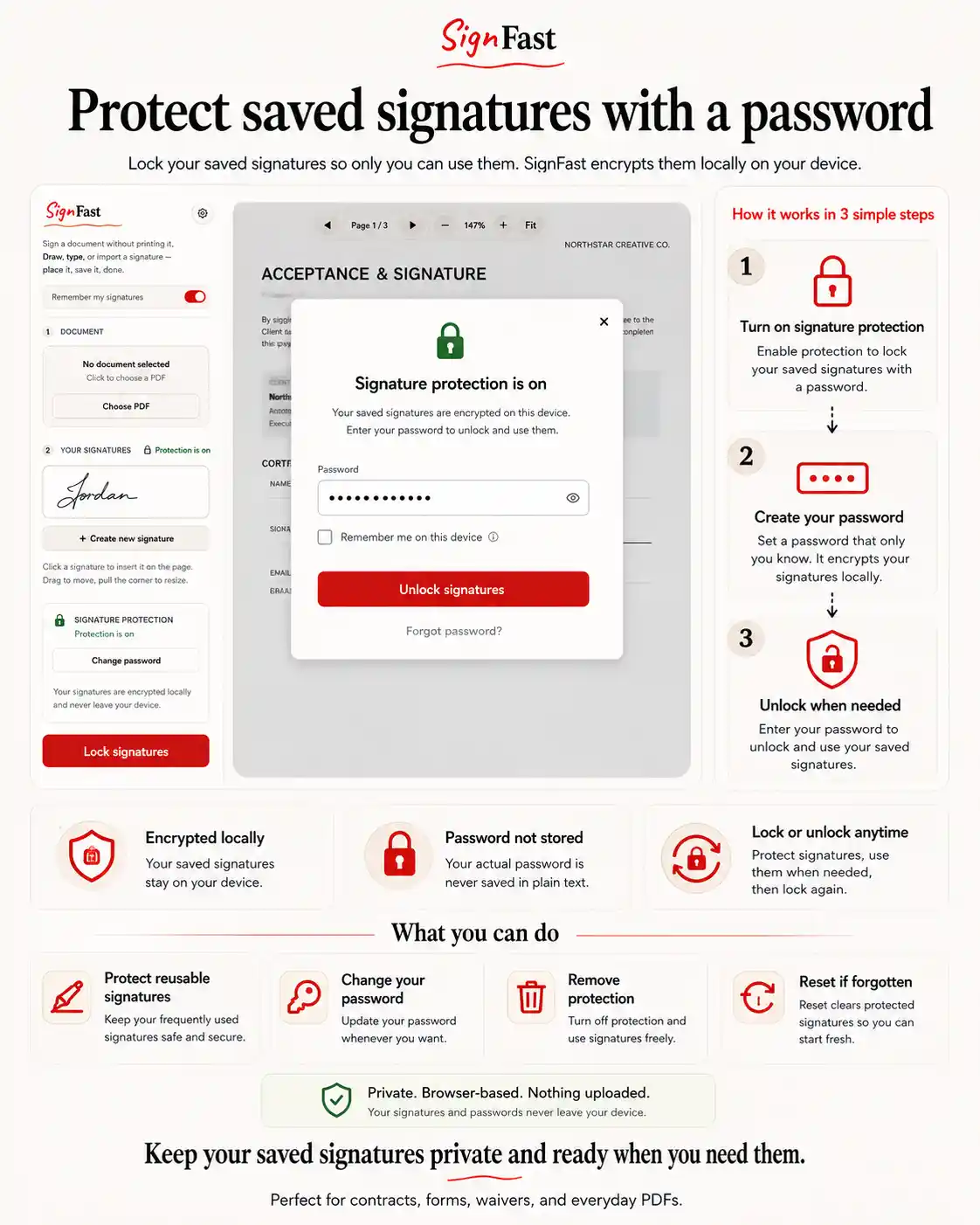
For additional protection, SignFast can encrypt saved signatures locally with a password.
When you enable password protection:
- SignFast encrypts your saved signatures locally
- SignFast never stores your password
- Your signatures remain locked until you enter the password
- You can lock them again whenever you want
- Optional automatic locking can protect them after inactivity
- You can change or remove password protection
However, SignFast cannot recover a forgotten password because it never stores it. You can reset the protected signature storage, but resetting it permanently removes the encrypted signatures. Afterward, you can create and save new signatures.
Manage PDF pages before signing
SignFast also includes practical page-management controls.
For example, you can:
- Reorder pages
- Exclude unwanted pages
- Review the selected pages
- Export the selected pages as one signed PDF
These controls help when a document contains unnecessary pages or pages in the wrong order.
However, SignFast does not rewrite existing paragraphs or replace a complete PDF editor. It focuses on signature creation, signature placement, page management, privacy, and document verification.
Verify whether a signed PDF has changed
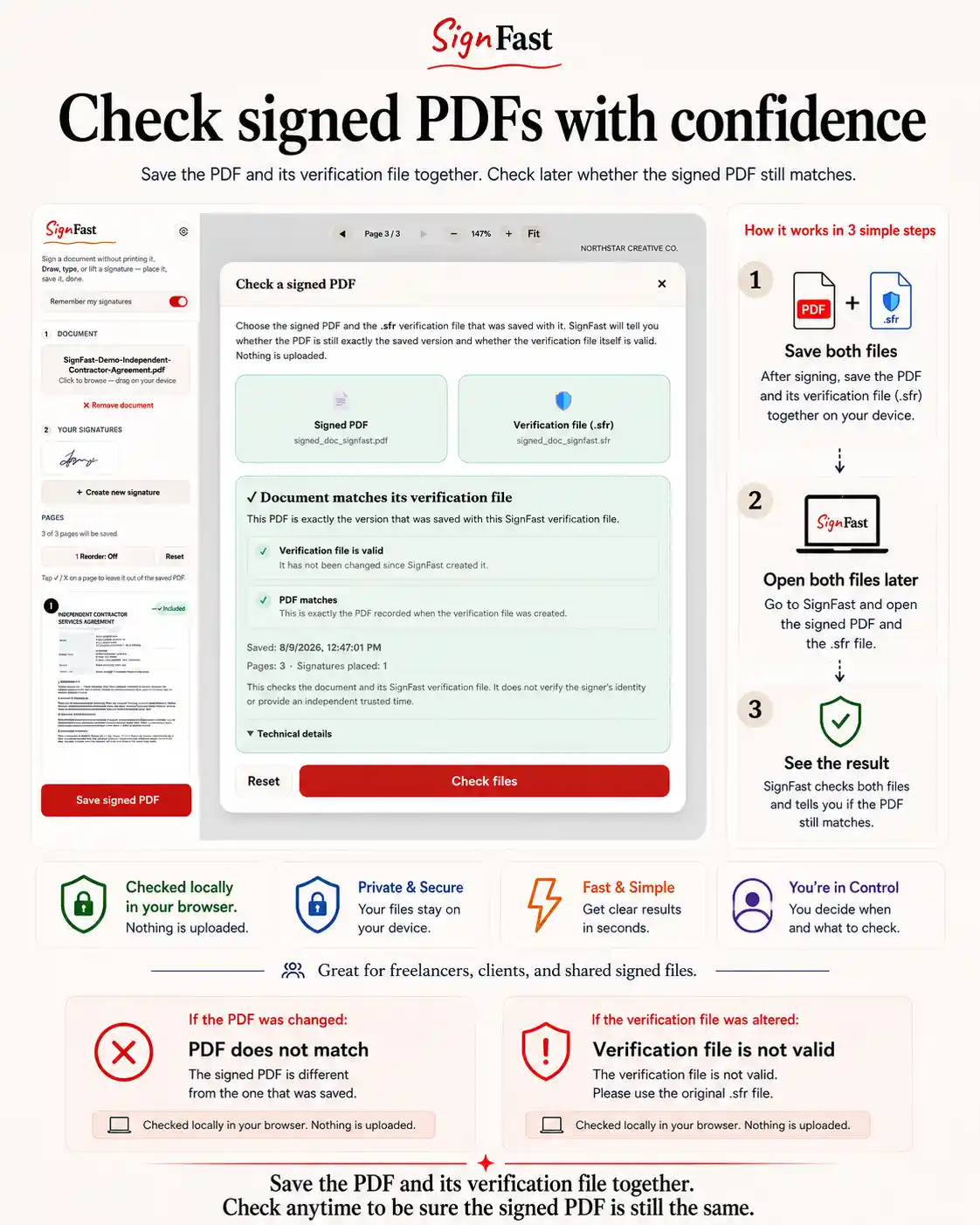
This PDF signature tool can also create an optional .sfr verification file when you save the signed PDF.
Keep the PDF and its matching .sfr file together. Later, you or the recipient can open both files in SignFast’s “Check a signed PDF” tool.
SignFast will show one of three results:
- Document matches its verification file
- PDF does not match
- Verification file is not valid
For example, SignFast can detect:
- Someone edited, changed, re-saved, or replaced the PDF
- Someone paired the PDF with the wrong verification file
- Someone altered or damaged the verification file
SignFast uses cryptographic protection for new verification files. Therefore, if someone changes the .sfr file, SignFast reports that the verification file is not valid.
The verification process also happens locally in your browser.
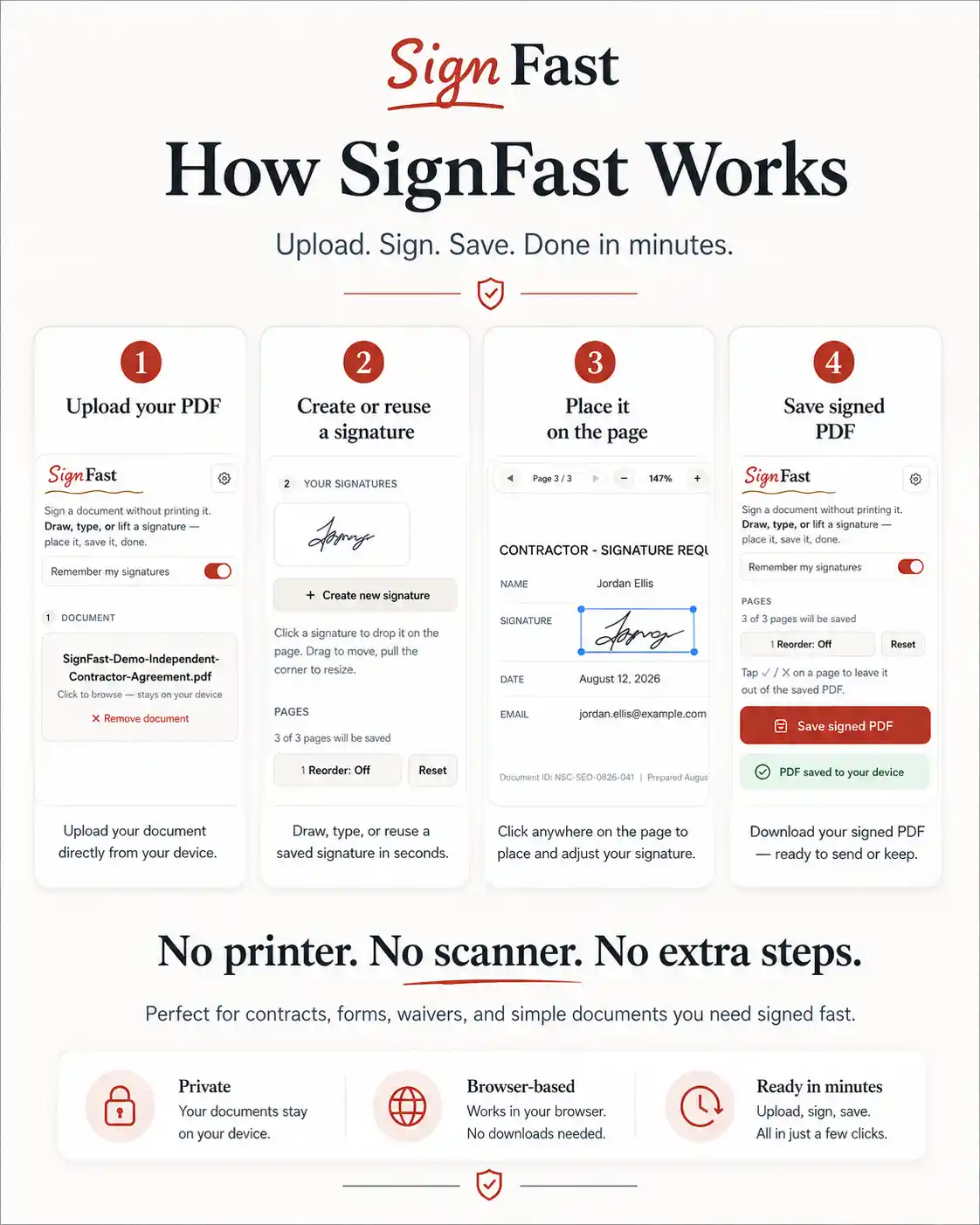
How the PDF signature tool works
- Open your PDF in SignFast.
- Draw, type, lift, or select a saved signature.
- Place and resize the signature.
- Reorder or exclude pages if necessary.
- Review the finished document.
- Save the signed PDF.
- Optionally save the matching
.sfrverification file. - Keep both files together if you want to verify the PDF later.
Because SignFast works in your browser, you do not need to print the document, sign it by hand, scan it, and rebuild the PDF.
Who can use SignFast?
SignFast works well for:
- Freelancers
- Consultants
- Contractors
- Remote workers
- Virtual assistants
- Small businesses
- Clients signing supplied documents
- Anyone who regularly receives PDFs that require a signature
Common uses include contracts, consent forms, waivers, approvals, acknowledgements, client paperwork, agreements, and routine business documents.
What SignFast does not provide
SignFast is not a DocuSign-style multi-party electronic-signature platform.
It does not provide:
- Remote signature requests
- Independent signer identity verification
- Cloud audit-trail certificates
- Trusted third-party timestamps
- Advanced contract management
- Editing of existing PDF paragraphs
The optional .sfr feature checks whether a PDF matches the version recorded by its verification file. However, it does not independently prove who signed the PDF or when that person signed it.
Frequently asked questions
Does this PDF signature tool upload my document?
No. Your browser handles the PDF during the signing and verification workflow. SignFast does not upload the document to a signing server.
Does the recipient need SignFast?
No. SignFast creates a standard PDF that recipients can open with ordinary PDF-reading software.
What is the .sfr verification file?
The .sfr file is an optional companion file that SignFast creates when you save a signed PDF. Later, it allows SignFast to check whether the PDF still matches the recorded version.
What happens if someone changes the PDF?
When you check the changed PDF against the original .sfr file, SignFast reports that the PDF does not match.
Can SignFast detect an altered verification file?
Yes. SignFast uses cryptographic protection for new verification files. If someone changes or damages the verification file, SignFast reports that it is not valid.
Does verification prove who signed the PDF?
No. Verification checks document matching and the integrity of the verification file. It does not independently confirm the signer’s identity or provide a trusted timestamp.
Can I reuse a saved signature?
Yes. Save a signature once and select it again when signing future PDFs.
Can I password-protect saved signatures?
Yes. SignFast can encrypt saved signatures locally and protect them with a password.
What happens if I forget my password?
SignFast cannot recover the password because it never stores it. You can reset the protected storage, but the reset permanently removes the encrypted signatures.
Can I create a signature from a photograph?
Yes. SignFast can isolate a handwritten signature from a photo so you can place it cleanly on a PDF.
Can I rearrange PDF pages?
Yes. You can reorder pages or exclude unwanted pages before saving the finished PDF.
Is SignFast a full PDF editor?
No. This PDF signature tool focuses on signatures, page management, local privacy, saved-signature protection, and document verification. It does not rewrite existing PDF text or perform advanced document editing.
Digital product
SignFast is digital software. Your order does not include a physical product.
For more amazing apps/digital tools check our store.
Be the first to review “SignFast – Private PDF Signature Tool”
You must be logged in to post a review.
Related products
Digital Tools & Utilities
Digital Tools & Utilities

Digital Tools & Utilities
Manifestation Journal – Private, Offline, and Built for Consistency


Digital Tools & Utilities
Digital Tools & Utilities
Redaction PRO: PDF Redaction Tool for Offline PDF & Image Redaction

Digital Tools & Utilities
Reviews
There are no reviews yet.